
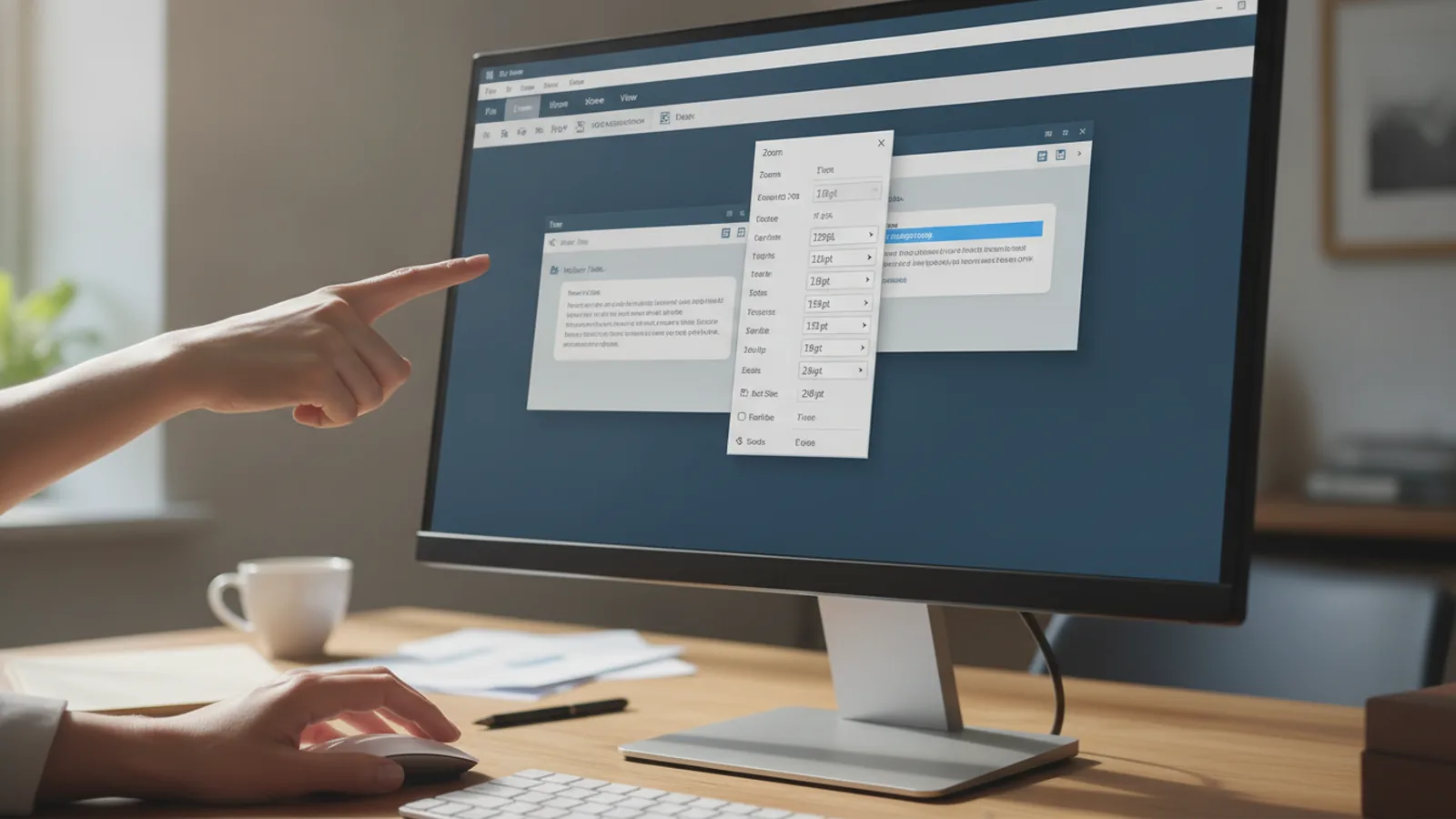
How To Change The Font Size In Outlook
This guide explains how to approach how to change the font size in outlook, including the preparation, practical steps, common mistakes, and final checks that help you finish with confidence.
Before You Start
Step-by-Step Instructions
Quick Reference
Common Problems When You change the font size in outlook
Advanced Tips for how to change the font size in outlook
Use Conditional Formatting to Highlight Important Emails
You can make emails from specific people, like your manager, automatically appear bigger and bolder in your inbox list. This makes them impossible to miss. Go to the View tab > View Settings > Conditional Formatting.... Click Add to create a new rule, give it a name (e.g., "Manager Emails"), click Font... to set a large size and bold style, and then click Condition... to set the rule (e.g., "From..." and enter your manager's email address). Now, any email from them will stand out in your inbox.
Understand Themes for a Cohesive Look
In the 'Signatures and Stationery' window, there's a Theme... button. A theme is a pre-packaged set of fonts, colours, and background graphics that apply to your emails. While they can look professional, they can also override the individual font settings you've just configured. If you find your font choices aren't being applied, check if a theme is active. For maximum control over your font size, it's often best to select (No Theme).
How To Change The Font Size In Outlook FAQ
Final Checklist for how to change the font size in outlook
FAQ
What should I check before I start?
Check the goal, the key prerequisite, and any current instructions that could change the safest next step for how to change the font size in outlook.
How can I tell whether the result is working?
Use the practical checks in the guide, pause if a required step is unclear, and verify the finished result against the intended outcome.