
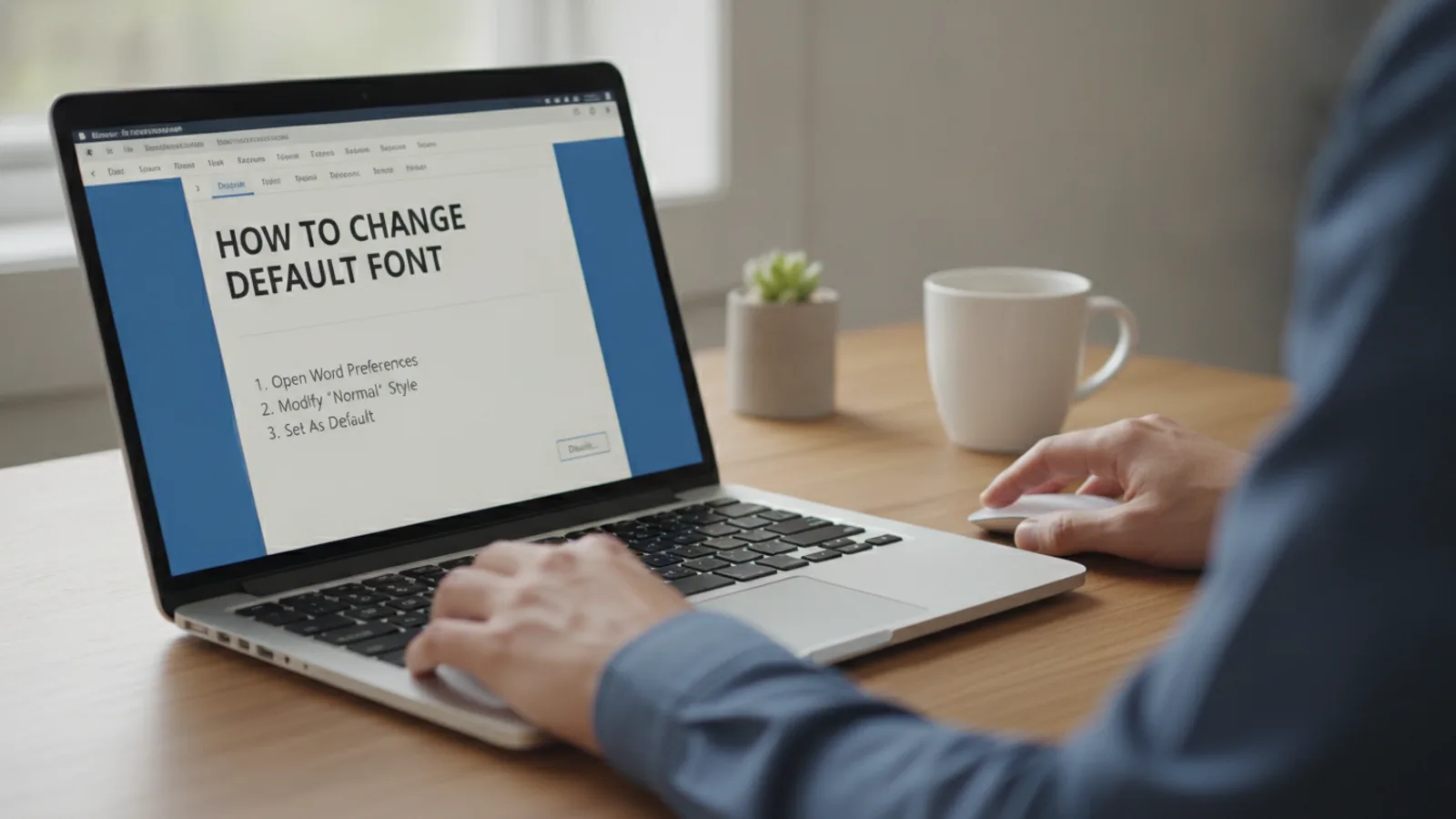
How To Change Word Default Font
This guide explains how to approach how to change word default font, including the preparation, practical steps, common mistakes, and final checks that help you finish with confidence.
Before You Start
Step-by-Step Instructions
Quick Reference
Common Problems When You Change Word Default Font
Sometimes things don't go as planned. Here are a few common issues and how to fix them.
The Font Reverts Back to Calibri
This is the most frequent issue. If you create a new document and it's still in Calibri, it means you likely selected "This document only?" instead of "All documents based on the Normal.dotm template?" in the final confirmation step. Simply repeat the steps in this guide, and be extra careful to select the second radio button to make the change permanent.
The Font Changed in One of My Old Documents
This is highly unlikely. The "Set as Default" function is specifically designed to affect the `Normal.dotm` template, which is only used for creating new blank documents. It does not go back and alter existing files. If you see a font change in an old file, it's more likely that you accidentally selected all the text (Ctrl+A) and changed the font manually.
My Company Template Overrides My Default
If you open a document from a shared drive at work or use a company-provided template, it will almost certainly have its own fonts and styles defined. These template styles will always take precedence over your personal default font. Your default font only applies when you create a document from a completely blank slate (File > New > Blank document).
Advanced Tips for Managing Fonts in Word
Once you're comfortable with the basics, you can manage your document formatting more efficiently with these advanced techniques.
Modify the "Normal" Style for More Control
Changing the default font is just one piece of the puzzle. For even greater control, you can modify the "Normal" style. A style is a pre-set collection of formatting rules. To do this, find the Styles gallery on the Home tab. Right-click on the style named "Normal" and choose Modify.
In the Modify Style window, you can change the font, size, and colour, but you can also define paragraph settings like line spacing, indentation, and space before or after paragraphs. Just like with the font dialogue, you can select the option for "New documents based on this template" to make your changes permanent. This is a more robust way to control your document's default look and feel.
Create Custom Templates for Different Needs
If you frequently create different types of documents, such as business letters, technical reports, and creative manuscripts, each with its own formatting needs, then custom templates are your best friend. Set up a document exactly how you want it—with the right fonts for headings and body, correct margins, and any headers or footers. Then, go to File > Save As, and in the "Save as type" dropdown menu, choose Word Template (*.dotx). Give it a descriptive name like "Business Letter Template." Now, when you go to File > New, your custom template will be available to use, saving you from having to reformat every time.
How to Reset Everything to Word's Original Defaults
If you've made changes you don't like and want to go back to Word's out-of-the-box settings (Calibri 11 pt), you can do so by resetting the `Normal.dotm` template file. First, close Microsoft Word completely. Then, you need to find and rename or delete the file.
The next time you launch Word, it won't find the file and will automatically create a fresh, new `Normal.dotm` with all the original factory default settings.
How To Change Word Default Font FAQ
Final Checklist for Changing Word Default Font
Before you close Word, run through this quick checklist to confirm you've set up everything correctly for a hassle-free writing experience next time.
FAQ
What should I check before I start?
Check the goal, the key prerequisite, and any current instructions that could change the safest next step for how to change word default font.
How can I tell whether the result is working?
Use the practical checks in the guide, pause if a required step is unclear, and verify the finished result against the intended outcome.