
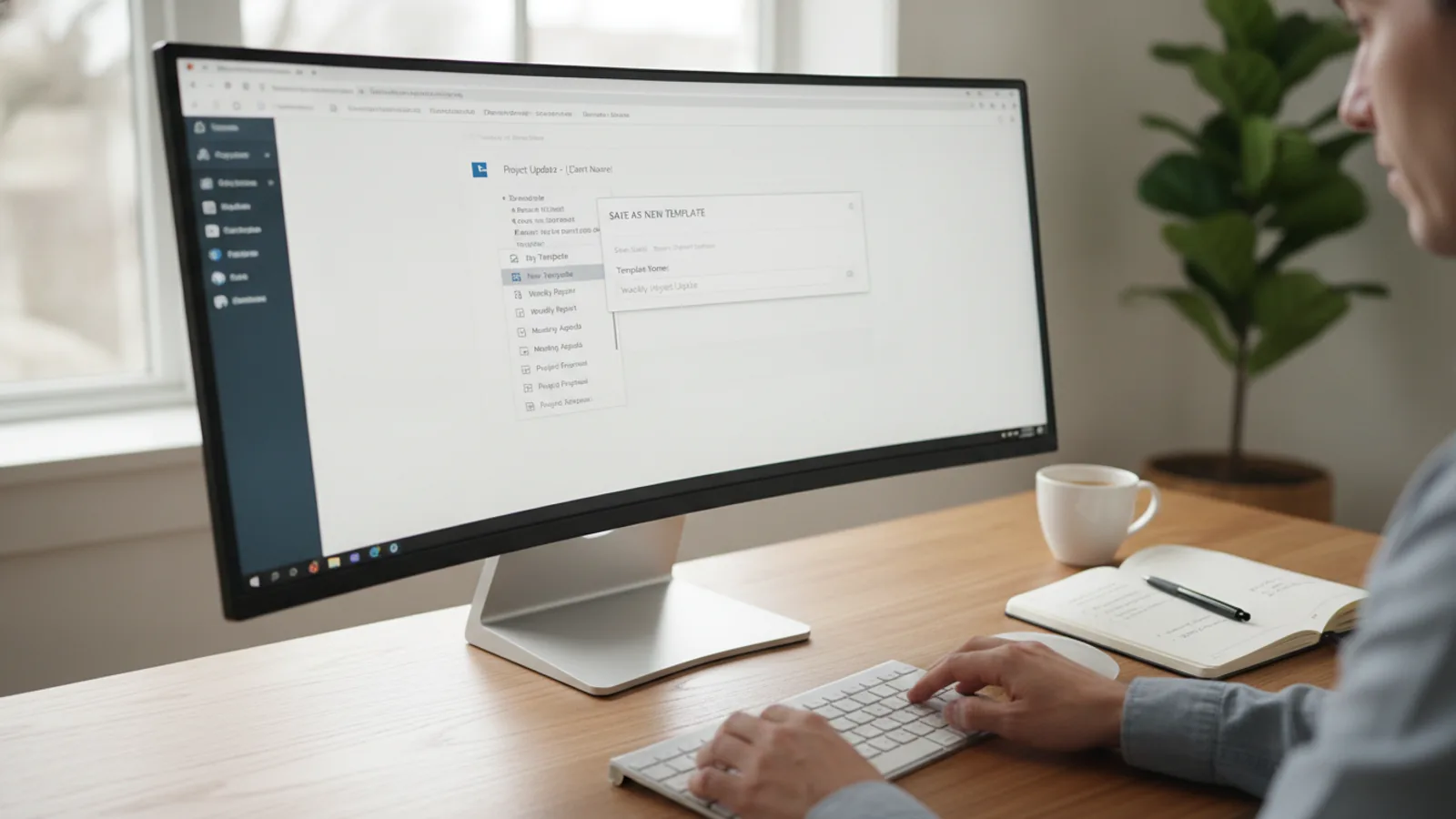
How To Create Email Templates In Outlook
This guide explains how to approach how to create email templates in outlook, including the preparation, practical steps, common mistakes, and final checks that help you finish with confidence.
Before You Start
Step-by-Step Instructions
Quick Reference
Common Problems When You Create Email Templates In Outlook
Even though the process is straightforward, a few common issues can pop up. Here’s how to troubleshoot them.
I can't find my saved templates.
This is the most common issue. When you go to Choose Form..., make sure the "Look In:" dropdown is set to User Templates in File System. This is where Outlook stores `.oft` files by default. If you saved it somewhere else, you'll need to select "Browse..." and navigate to that folder.
My formatting or images look broken.
Email formatting can be tricky. If your images or fonts aren't appearing correctly for recipients, try to simplify. Stick to common, web-safe fonts like Arial, Helvetica, or Times New Roman. For images, ensure they are properly inserted (`Insert > Pictures`) rather than copy-pasted. For best results, use smaller image file sizes and consider that some email clients may block images by default.
I saved an attachment, but it's not always sending.
You can save an email with an attachment as an `.oft` template. However, this can create very large template files and can sometimes cause issues. A more reliable method is to upload the file to a cloud service (like OneDrive, Google Drive, or Dropbox) and include a shareable link to the file in your template's body text. This keeps the template light and ensures the recipient always gets the latest version of the file.
The template file opens for editing instead of creating a new message.
If you double-click an `.oft` file directly from your file explorer, it will open the template itself for editing. To use the template to create a *new* email, you must go through the New Items > More Items > Choose Form... path inside Outlook. This action creates a new, unsaved copy (an `.eml` message) based on your template, leaving the original template untouched.
Advanced Tips for Email Templates in Outlook
Once you've mastered the basics, you can use these advanced techniques to become even more efficient.
Combine Templates with Quick Parts
Outlook has another feature called Quick Parts, which is perfect for saving and reusing smaller chunks of text, like a specific paragraph, a list of instructions, or a complex link. While a template creates an entire email, a Quick Part can be inserted into any email you're already writing. You can find it under the Insert tab. Use templates for the overall structure and Quick Parts for the customisable building blocks within them.
Automate Replies with Rules and Templates
For the ultimate hands-off approach, you can combine Outlook Rules with your templates. You can create a rule that automatically replies to certain emails using a specific template. For example, you could set up a rule so that any email with "Request for Information" in the subject line gets an automatic reply using your "Initial Enquiry Response" template. You can find this under File > Manage Rules & Alerts.
Create a Shortcut to Your Templates Folder
The "Choose Form" process can feel a bit slow. For faster access, you can create a shortcut to your templates. First, find the folder path by typing `%appdata%\Microsoft\Templates` into your Windows File Explorer address bar. You can then right-click this folder and choose "Pin to Quick access" or create a desktop shortcut. Clicking a template from the folder will still open it for editing, but it makes managing your library of `.oft` files much quicker.
How To Create Email Templates In Outlook FAQ
Can I use these email templates in Outlook for Mac?
Yes, the process is very similar on Outlook for Mac. You compose an email, then go to File > Save as Template. To use it, you go to File > New > Email from Template. The core concept of saving as a template file is the same.
What about Outlook on the web (Outlook.com) or the mobile app?
The `.oft` file method described in this guide is for desktop apps only. For the web and mobile versions, you should use the "My Templates" add-in. It's a free add-in from Microsoft that lets you save and use text snippets that sync across all your devices. It's less powerful (e.g., for complex formatting or attachments) but much more portable.
Can I include hyperlinks and formatted text in my templates?
Absolutely. Any formatting you apply in the email composition window—bold text, bulleted lists, different colours, and hyperlinks—will be saved in your `.oft` template. Just use the standard formatting tools on the Message tab as you write the content.
Is there a limit to how many email templates I can have?
There is no practical limit to the number of templates you can create. Your only limitation is the storage space on your hard drive, and since `.oft` files are typically very small, you can create hundreds or thousands without any issue.