
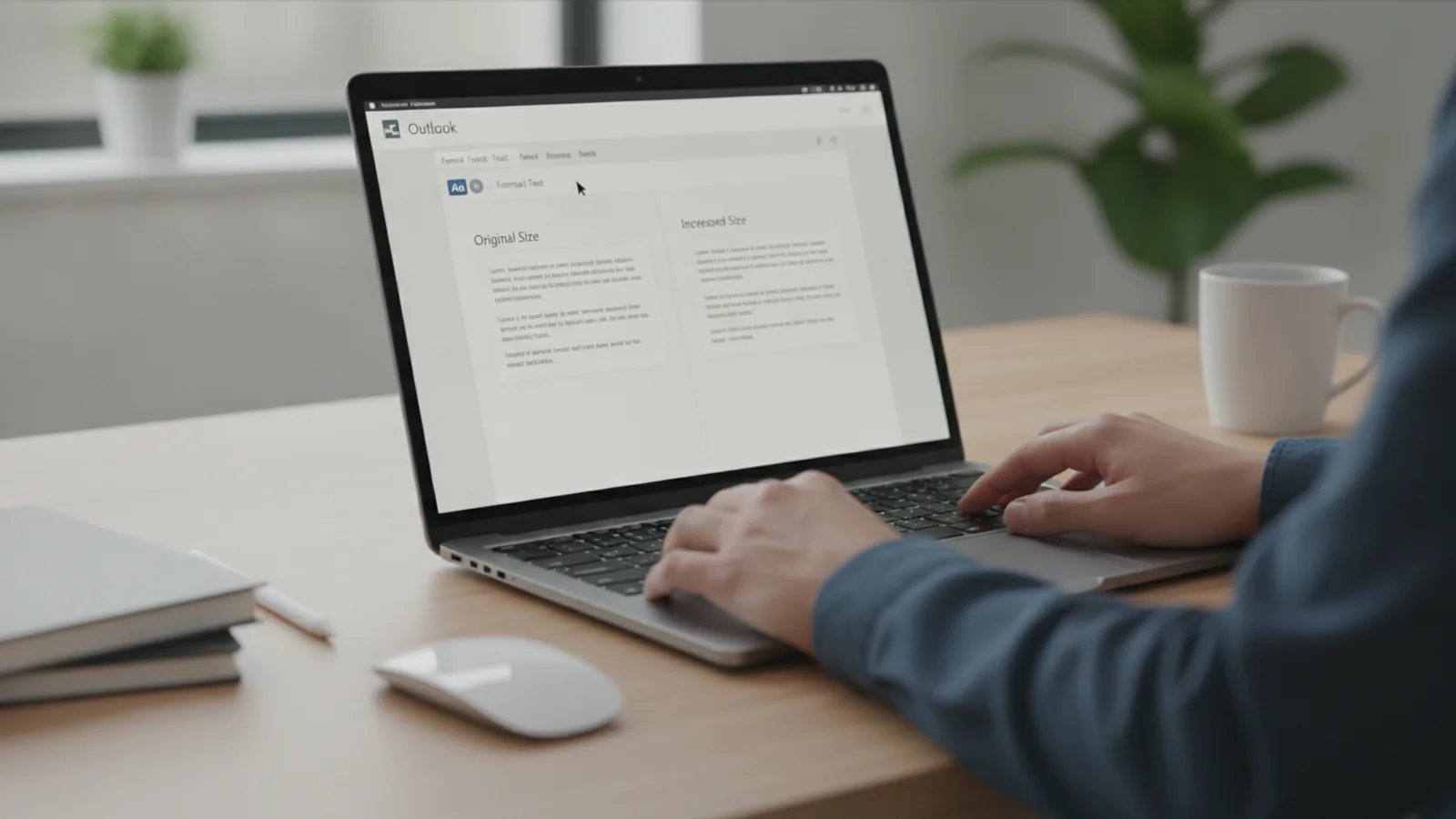
How To Increase Font Size In Outlook
This guide explains how to approach how to increase font size in outlook, including the preparation, practical steps, common mistakes, and final checks that help you finish with confidence.
Before You Start
Step-by-Step Instructions
Quick Reference
Common Problems When You Increase Font Size In Outlook
My Font Changes Don't Seem to Save
This is a common frustration. You go through the steps in the Options menu, but the next time you open a new email, the font is back to the small default. The most common cause is not saving the settings correctly. After you choose your font and size in the 'Stationery and Fonts' window, you must click OK on that window, and then click OK on the main 'Outlook Options' window. If you close the window using the 'X' button, your changes may not be saved. In some corporate environments, IT policies might also override user settings, so if it consistently reverts, it may be worth checking with your IT department.
The Font is Bigger When I Write, But Not When I Read Emails
This happens because Outlook has separate settings for composing and viewing. Changing the font in File > Options only affects the emails you write. To make the text of emails you receive larger, you must use the Zoom feature in the reading pane. There is no setting to permanently increase the font size of all incoming emails, because that would mean altering the original message sent by someone else. The zoom function is the correct tool for this job.
Recipients Complain My Emails Have a Huge Font
This is the critical warning from the 'Before You Start' section in action. The font size you set for "New mail messages" is embedded in the email. If you set it to 18pt to make it easy for you to read while typing, the recipient will see 18pt text, which can look unprofessional or like you are shouting. The best practice is to keep your default composing font to a standard size (like Calibri 11pt or Arial 12pt) and use your operating system's magnification or display scaling tools if you need help seeing the screen while you type.
The Outlook Menus and Folder List are Still Too Small
The settings inside Outlook only control the content areas (like the message list and reading pane). They do not control the size of the application's user interface, such as the Ribbon menu, the folder pane on the left, or the title bars. This is controlled by your operating system's display scaling settings. In Windows, you can find this by right-clicking the desktop, selecting Display settings, and adjusting the Scale percentage under 'Scale & layout'. Increasing this will make everything on your screen larger, including all parts of Outlook.
Advanced Tips for Increasing Font Size In Outlook
Use Conditional Formatting for Important Emails
You can make emails from specific people, or with specific words in the subject line, automatically appear larger in your inbox list. This helps important messages stand out. Go to View > View Settings > Conditional Formatting. You can click Add to create a new rule. Name it (e.g., "Manager Emails"), click the Font... button to set a larger size or bold style, and then click the Condition... button to define the rule, such as when the email is from a specific person.
Utilise the Immersive Reader for Focused Reading
Microsoft has a powerful accessibility tool built into Outlook called the Immersive Reader. It's designed to improve reading fluency and focus. Open an email in its own window, go to the Message tab, and click Immersive Reader. This opens a full-screen, distraction-free view where you can easily adjust text size, spacing, page colour, and even have the email read aloud to you. It's an excellent tool if you struggle with reading blocks of text on a screen.
Create a Quick Style for Occasional Large Print
Perhaps you don't want every email to have a large font, but you occasionally need to make a specific paragraph stand out. Instead of changing the font manually every time, you can create a Style. When composing a new email, go to the Format Text tab. You will see a gallery of Styles. Click the small arrow in the bottom-right of the Styles box to open the full Styles pane. At the bottom, click the 'New Style' button. You can create a style named "Large Warning" with a size of 16pt and a red colour, for example. It will then be available in your Styles gallery for one-click application.
How To Increase Font Size In Outlook FAQ
Final Checklist for Increasing Font Size In Outlook
FAQ
What should I check before I start?
Check the goal, the key prerequisite, and any current instructions that could change the safest next step for how to increase font size in outlook.
How can I tell whether the result is working?
Use the practical checks in the guide, pause if a required step is unclear, and verify the finished result against the intended outcome.