
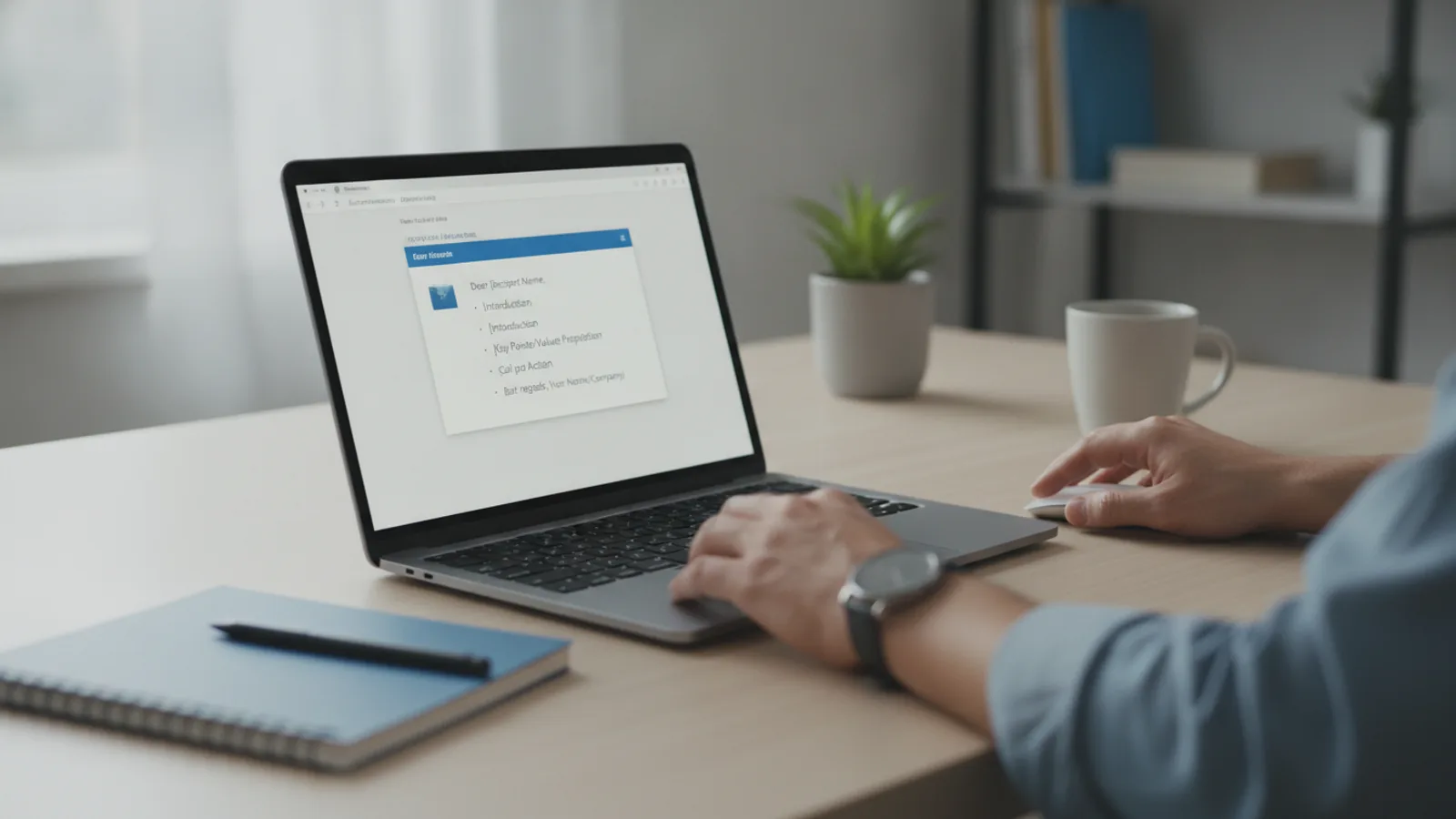
How To Make An Email Template In Outlook
This guide explains how to approach how to make an email template in outlook, including the preparation, practical steps, common mistakes, and final checks that help you finish with confidence.
Before You Start
Before you begin, make sure you have everything you need. This process is straightforward, but having the right software version is key to accessing all the features described below.
What You Need
Safety, Timing, or Context Checks
Step-by-Step Instructions
Follow these steps to create and save your first email template in Outlook. The process involves composing a standard email and then saving it in a special format that Outlook recognises as a reusable template.
Common Problems When You Make An Email Template In Outlook
While creating templates is usually smooth, you might run into a few common issues. Here’s how to troubleshoot them.
Advanced Tips for Email Templates in Outlook
Once you've mastered the basics, you can use these advanced techniques to make your templates even more powerful and accessible.
Use Quick Parts for Reusable Snippets
Sometimes you don't need a full email template, just a reusable block of text, like a project description, a set of instructions, or a detailed answer to a common question. For this, Outlook's Quick Parts feature is perfect. To create one, type your desired text in an email, highlight it, go to the Insert tab, click Quick Parts, and choose Save Selection to Quick Part Gallery. You can then insert this block of text into any email with just two clicks.
Add Your Template to the Outlook Ribbon or Quick Access Toolbar
For templates you use daily, navigating through the "Choose Form" menu can feel slow. You can add a direct shortcut to your template on the main Outlook ribbon or the Quick Access Toolbar for one-click access. This requires customising the ribbon:
Share Templates With Your Team
To ensure brand consistency, you can share your `.oft` files with colleagues. The easiest way is to email the file as an attachment. They can then save it to their own Outlook templates folder. For larger teams, a better solution is to store the `.oft` files in a shared network drive or a SharePoint/Teams folder. This creates a central library of approved templates that everyone can access, ensuring all outbound communication is uniform.
Quick Reference
How To Make An Email Template In Outlook FAQ
Final Checklist for Making an Email Template in Outlook
Before you finish, run through this quick checklist to make sure your template is ready to go and will work as expected.
FAQ
What should I check before I start?
Check the goal, the key prerequisite, and any current instructions that could change the safest next step for how to make an email template in outlook.
How can I tell whether the result is working?
Use the practical checks in the guide, pause if a required step is unclear, and verify the finished result against the intended outcome.