
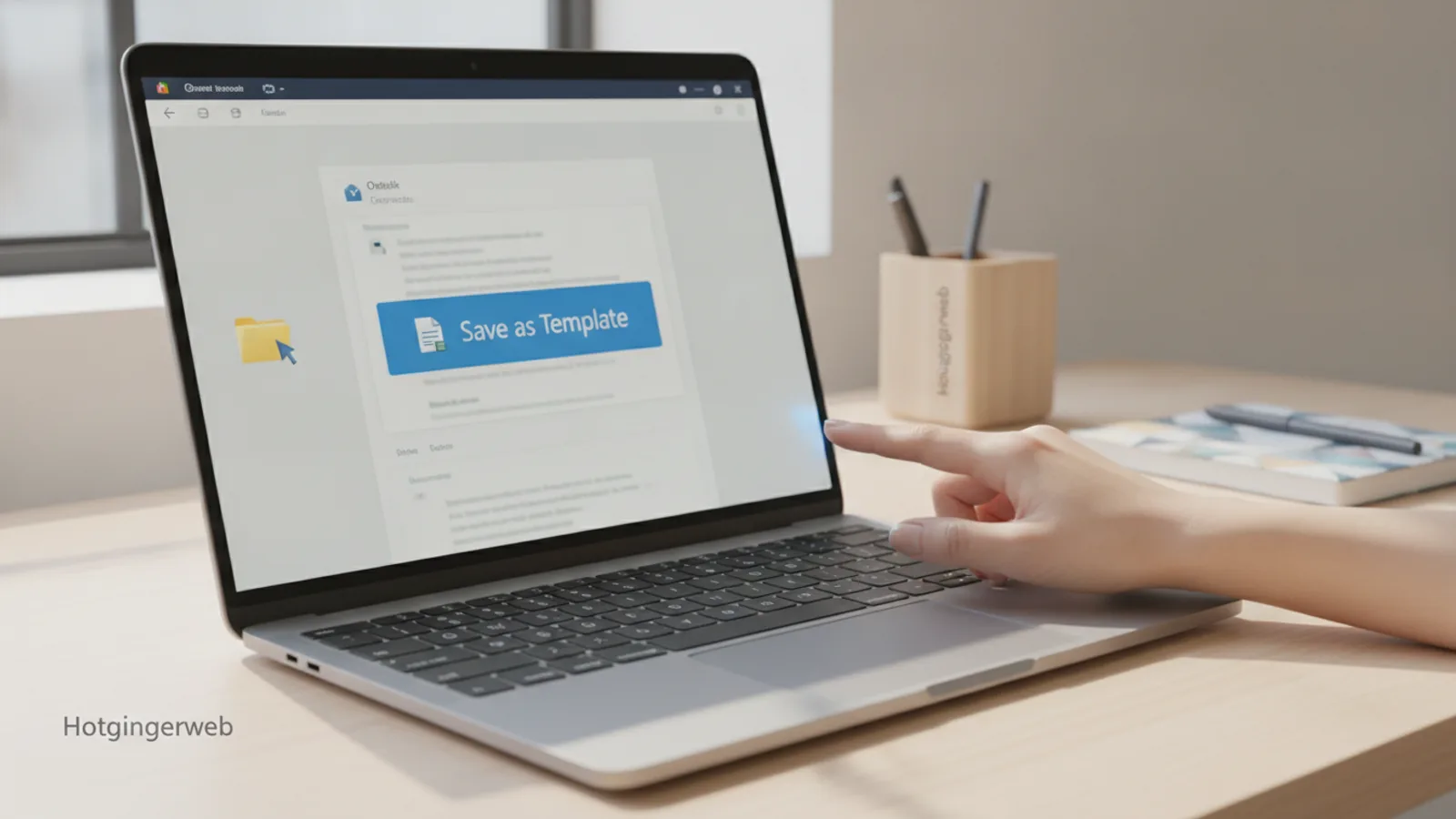
How To Save An Email As A Template In Outlook
This guide explains how to approach how to save an email as a template in outlook, including the preparation, practical steps, common mistakes, and final checks that help you finish with confidence.
Before You Start
Step-by-Step Instructions
Common Problems When You Save an Email as a Template in Outlook
Advanced Tips for Outlook Email Templates
Once you've mastered the basics, you can use these advanced techniques to make your templates even more powerful and efficient.
Create a Quick Step to Open a Template
For templates you use daily, navigating through menus is too slow. A "Quick Step" can launch a template with a single click.
Share Your Templates with Your Team
Consistency across a team is vital. You can share your `.oft` template files with colleagues to ensure everyone uses the same approved messaging.
Simply navigate to your templates folder (%appdata%\Microsoft\Templates on Windows), find the `.oft` file you created, and send it to your colleague via email or a shared drive. They just need to save that file into the same templates folder on their own computer. When they go to "Choose Form", the shared template will appear in their list.
Editing an Existing Template
To update or change a template, you don't need to start from scratch. You can edit the original file directly.
How To Save An Email As A Template In Outlook FAQ
Final Checklist for Saving an Email as a Template in Outlook
FAQ
What should I check before I start?
Check the goal, the key prerequisite, and any current instructions that could change the safest next step for how to save an email as a template in outlook.
How can I tell whether the result is working?
Use the practical checks in the guide, pause if a required step is unclear, and verify the finished result against the intended outcome.